User Registration — Self-Represented User (Pro Se)
Self-represented users (pro se) are individuals who represent themselves without an attorney. Registration is similar to the process for other users, but you must upload a signed consent form before the Clerk can review and approve your account. Once your account is approved, you can view your case, add pleadings, and reschedule mediations. You cannot create a new filing through the portal. New cases must be started in person at a WCA office.
How self-represented user registration works
| Step | Description |
|---|---|
| 1. Visit the ECF portal | Create an account on the ECF portal (same as for an attorney or representative). Have your signed consent form ready to upload. |
| 2. Upload the consent form | Sign the required consent form authorizing electronic access to your case. Upload it during registration so the Clerk can set up your ECF account. |
| 3. Clerk review | The Clerk's Office reviews your account and approves or rejects after reviewing your signed consent. |
| 4. Setup email | If approved, you receive an email with a link to set your password. Complete account setup the same way as in User Registration — Attorney or Representative. |
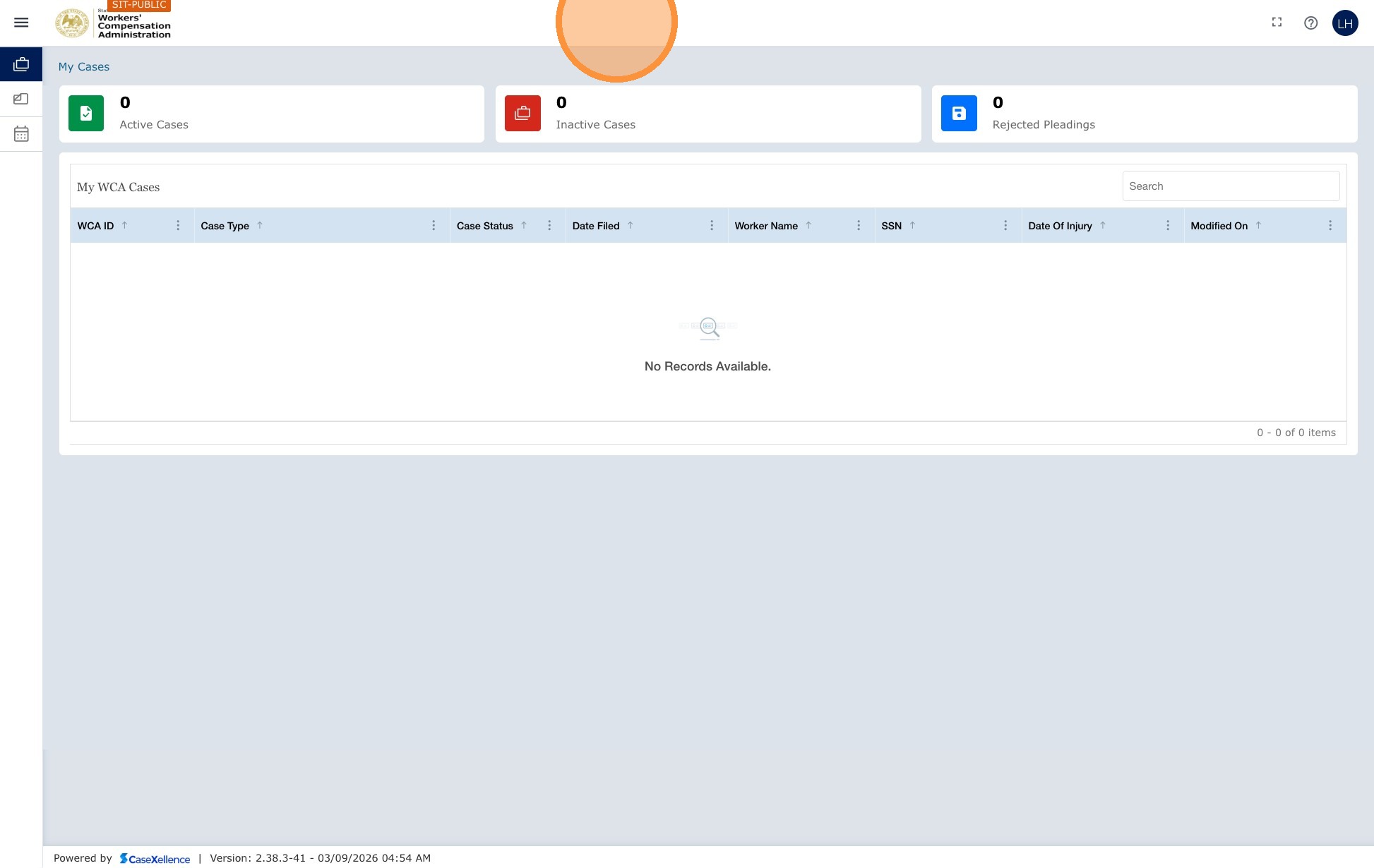
| 5. Log in and view your case | Once logged in, your case appears under My Cases. You will not see E-Filing or Entry of Appearance—your access is limited to your existing case. |
Register as a self-represented user (pro se)
1. Start registration
- Open the ECF portal and click Create Account on the landing page.

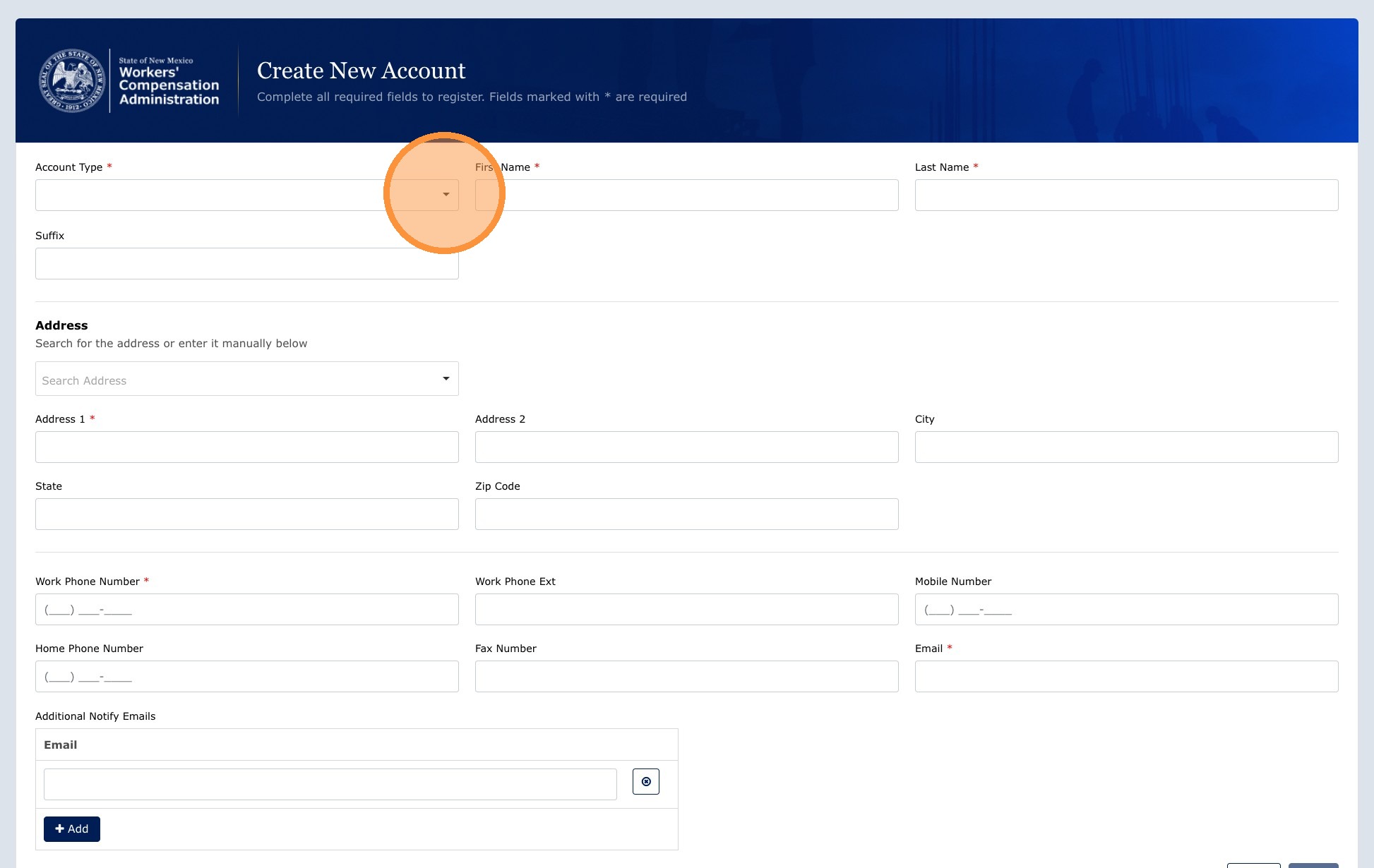
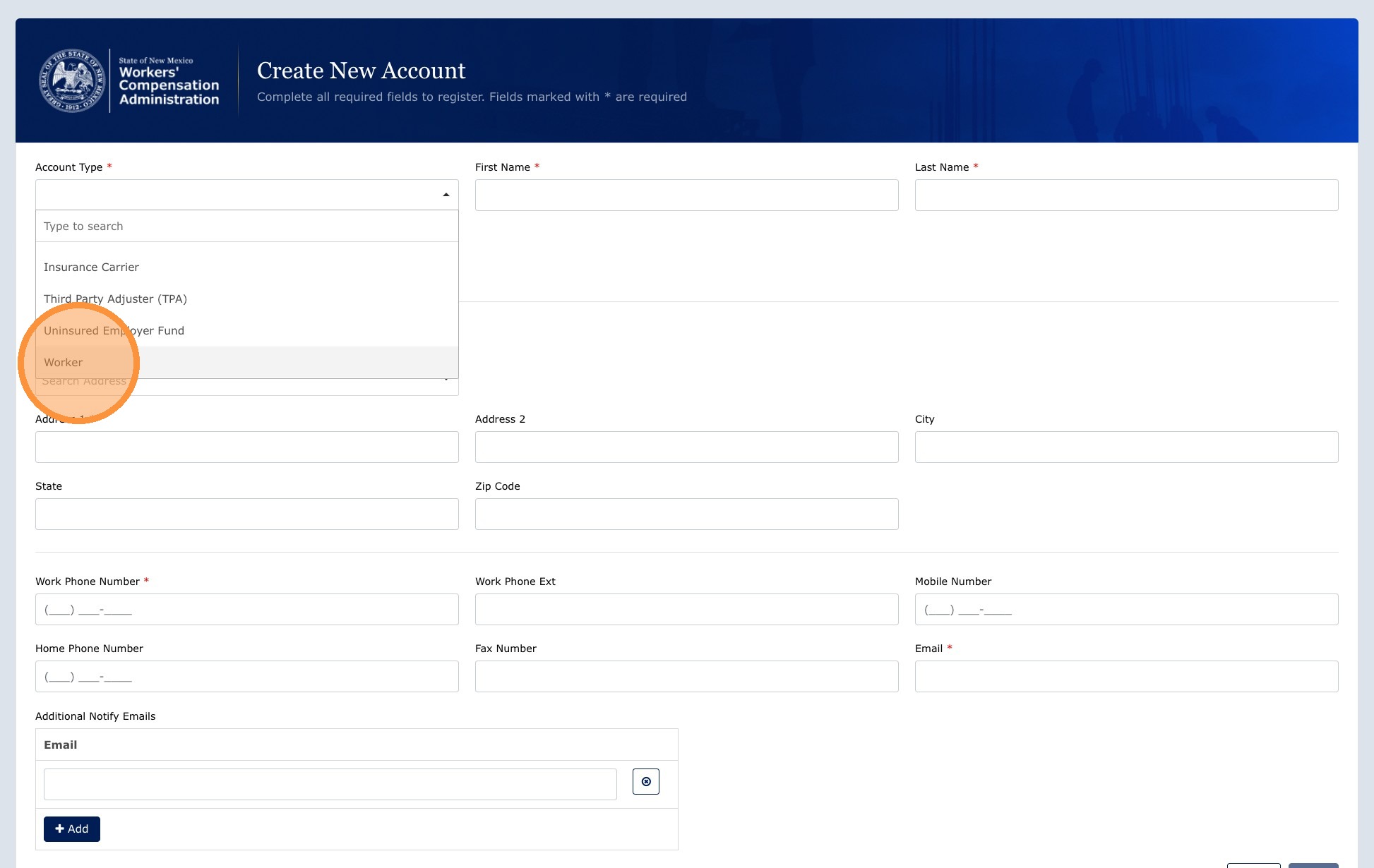
2. Complete the form and select a Self Represented option
Fill in the registration fields and select any of the Self Represented options from the filer type dropdown.
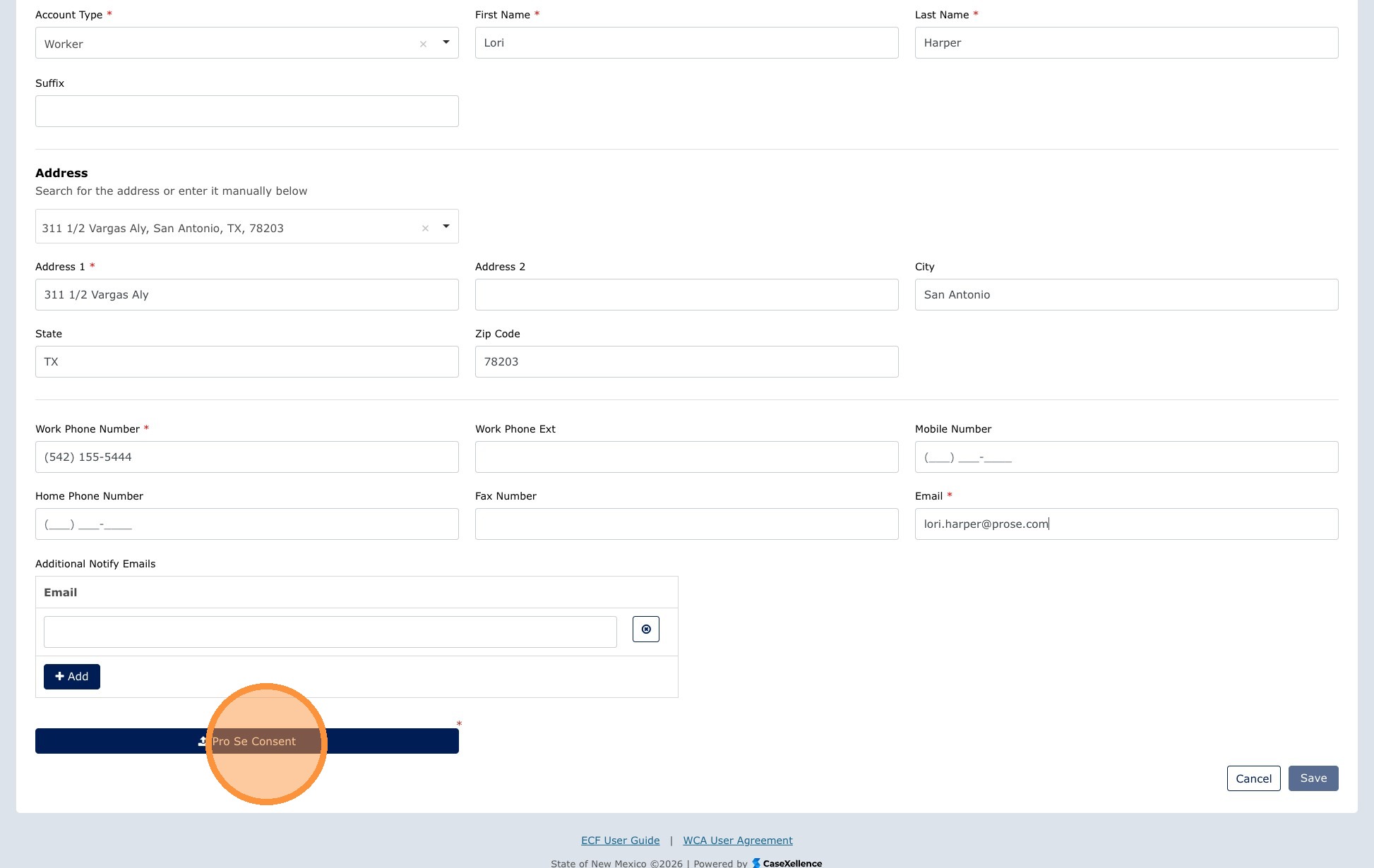
3. Upload the consent form
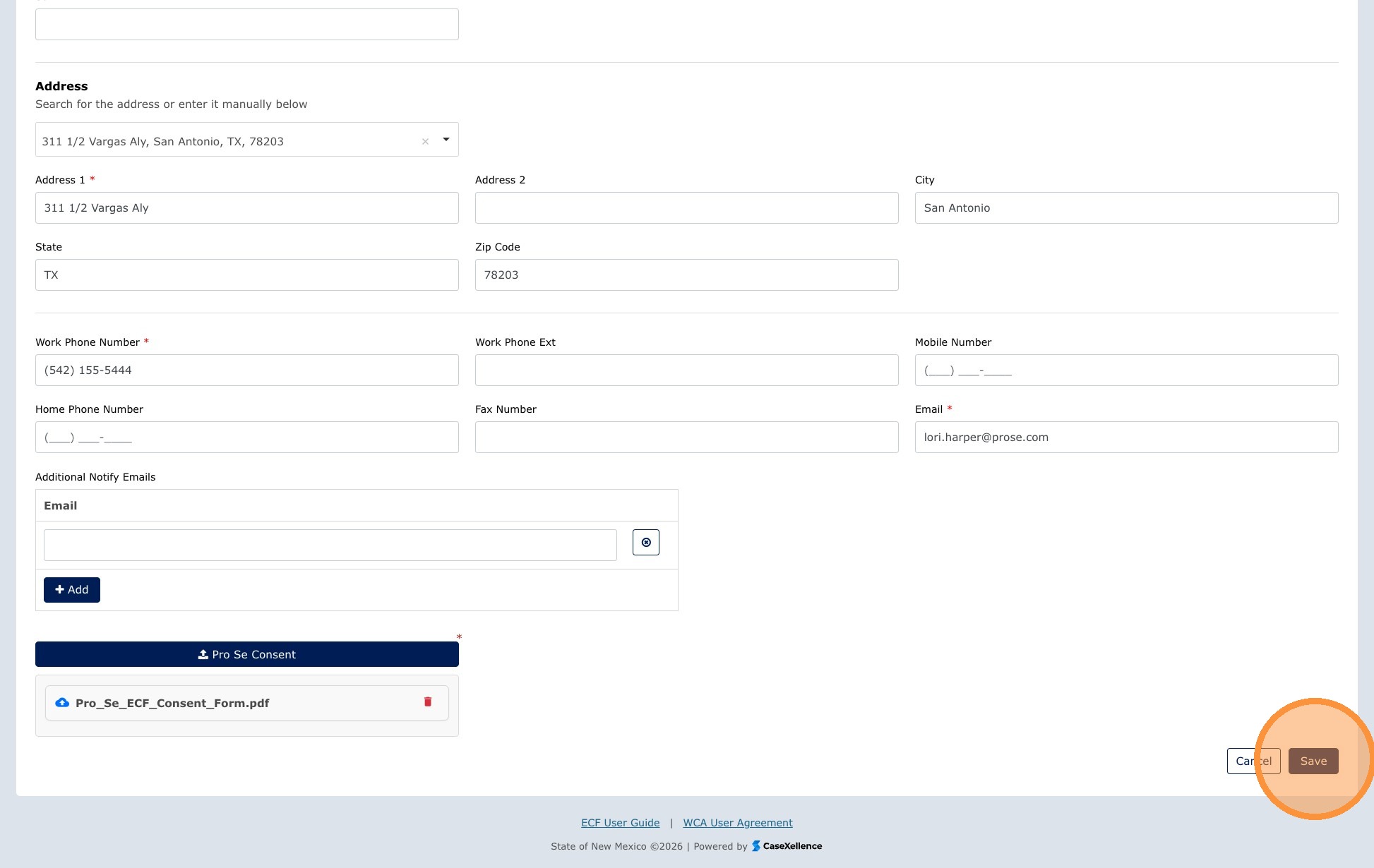
- Click Pro Se Consent to upload your signed consent form.
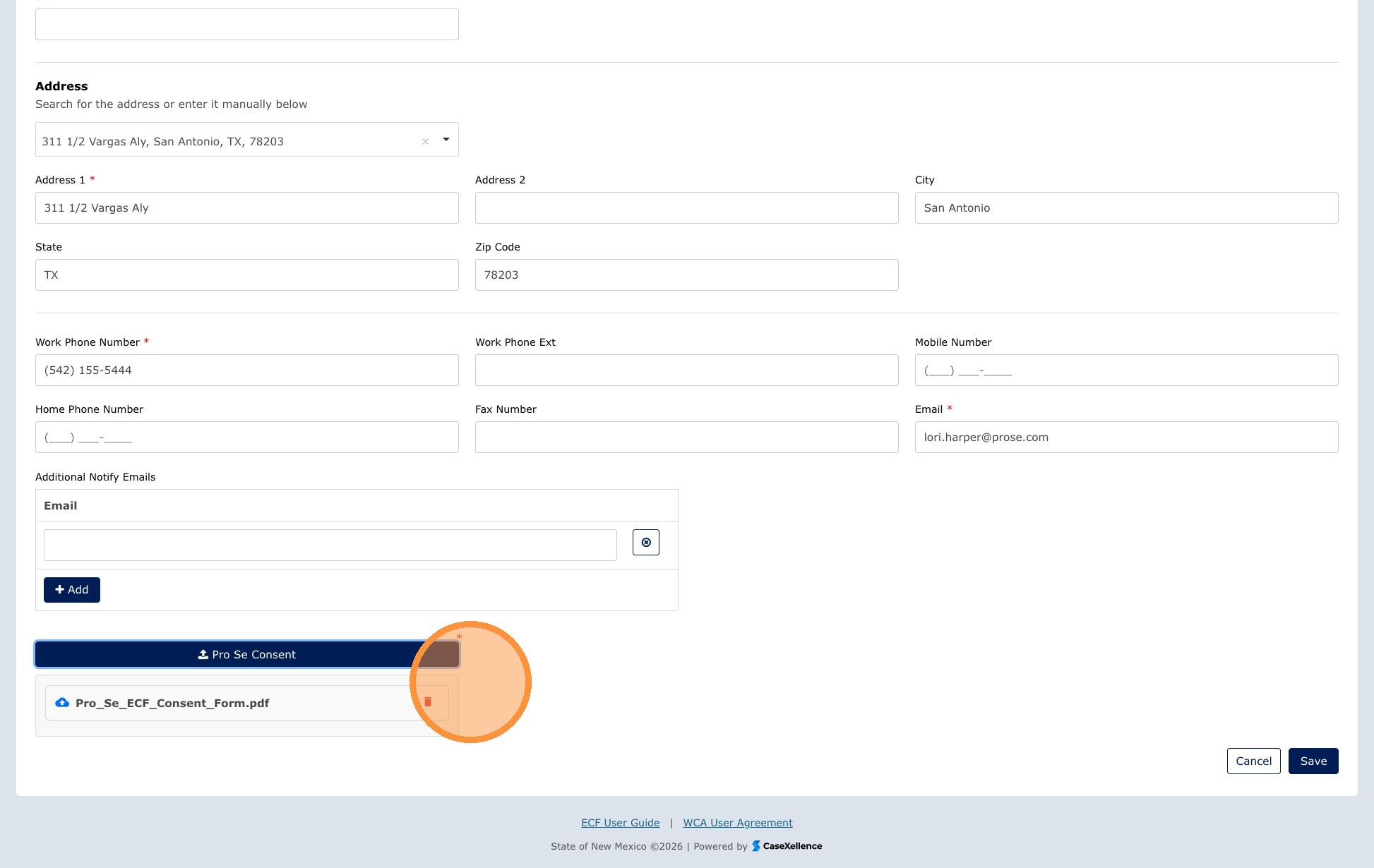
4. Submit for review
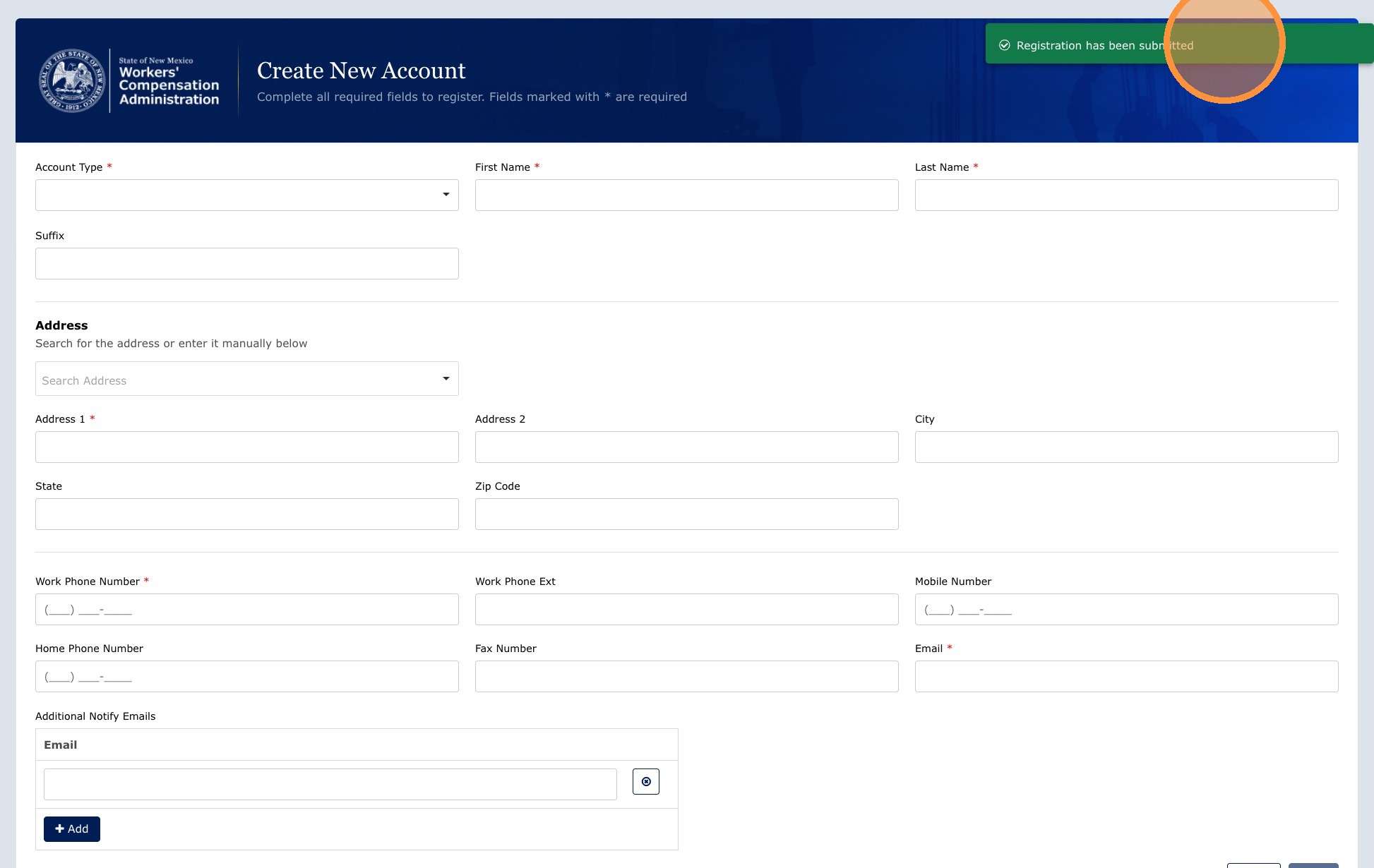
- Click Save to submit your registration for the Clerk's review.
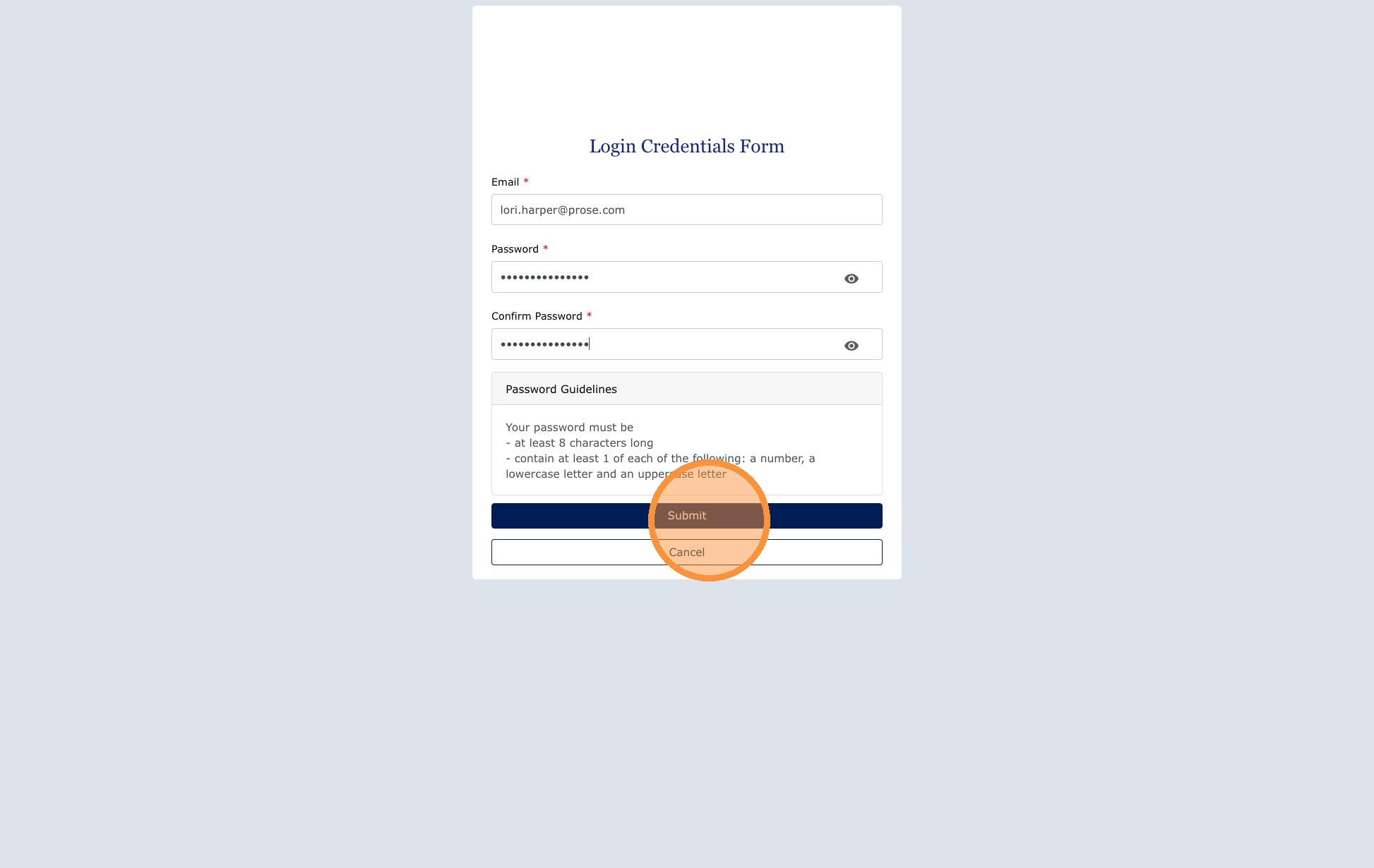
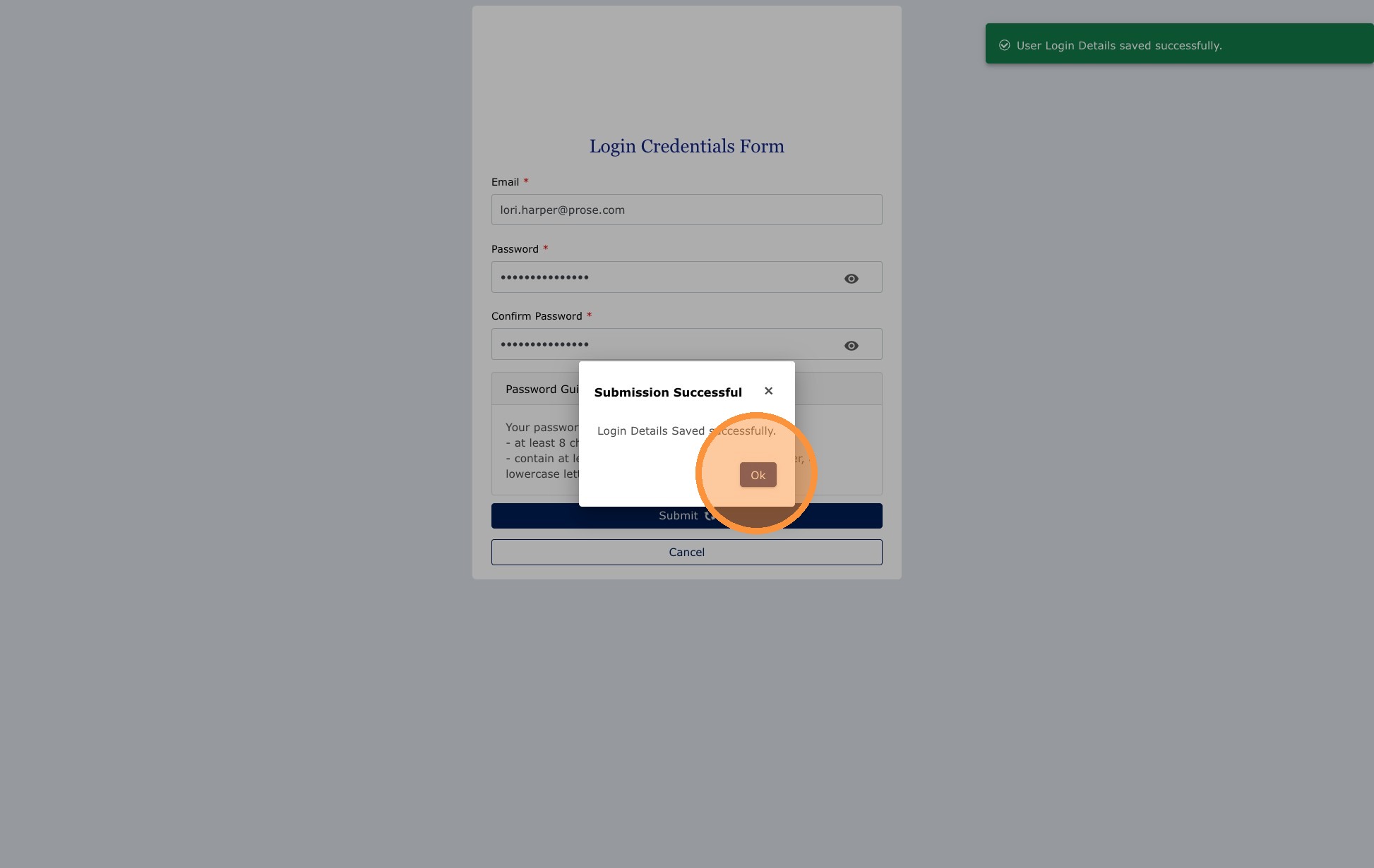
After approval: When the Clerk approves your registration, you will receive an email with a link to set your password. Click the link to open the password setup form, create your password, and then click OK. You can then log in to the portal using your email address and new password.
What self-represented users can and cannot do
| Action | Available |
|---|---|
| View your case | Yes. You can see all case details, pleadings, and events for your case. |
| Add pleadings to your case | Yes. You can upload and submit additional documents to your existing case. |
| Reschedule a mediation | Yes. You can view available slots and reschedule through the portal (if more than 5 days before the scheduled date). |
| Submit a Late Reset Request | Yes. If rescheduling within the 5-day window, you can submit the Late Reset Request form through the portal. |
| Create a new filing / start a new case | No. New cases must be initiated in person at the WCA Clerk's Office. |
| Submit an Entry of Appearance | No. This feature is not available to self-represented users (pro se). |
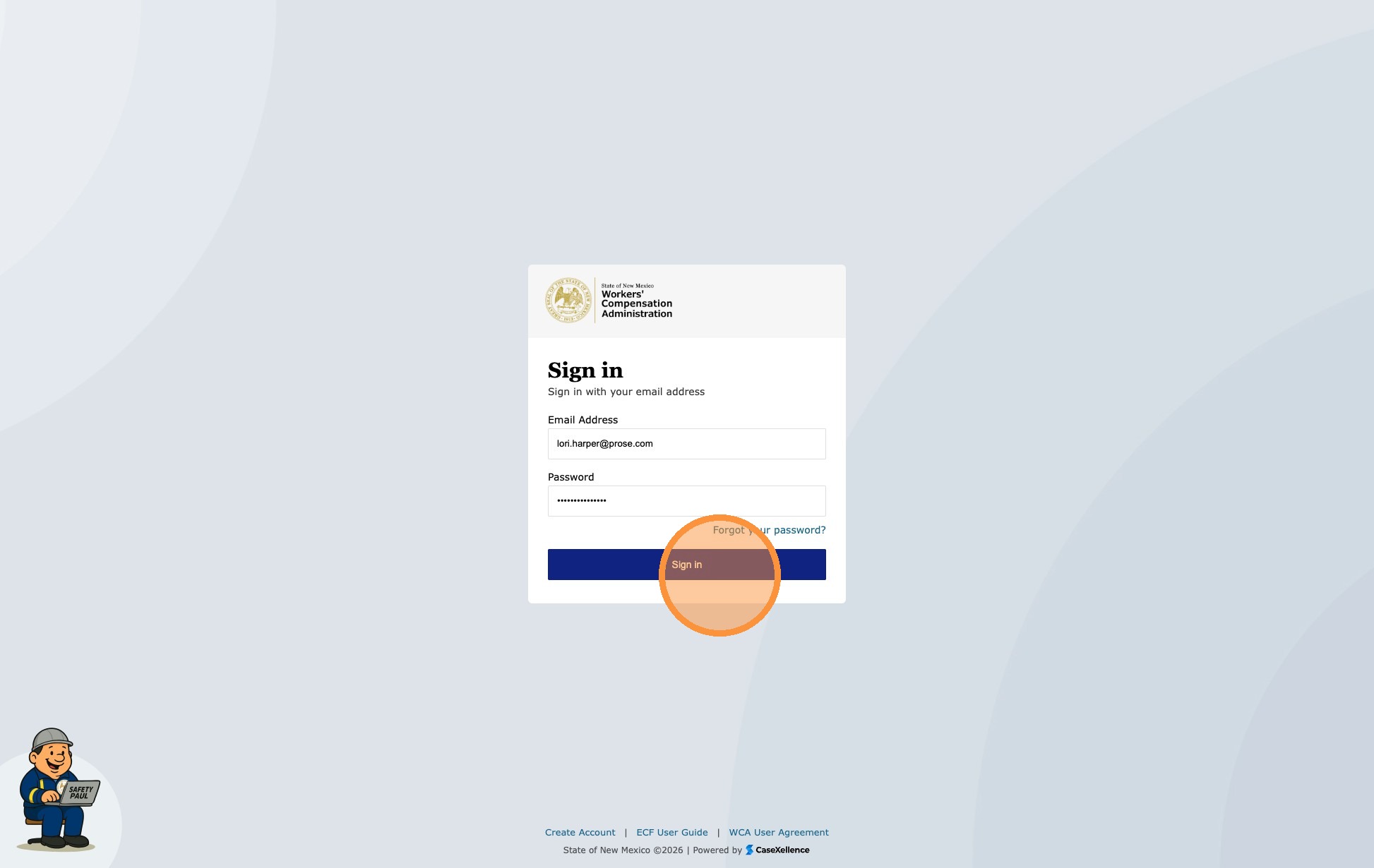
Log in after password setup
- Open the portal and sign in using your email address and the password you created.

Note: If the other party's attorney reschedules a mediation, the system still allows the action when one party is self-represented. The portal supports rescheduling in cases involving self-represented parties.
See also: User Registration — Attorney or Representative · Mediation - Rescheduling · Contact Us
Portions of this user guide were produced with assistance from artificial intelligence tools; all content was reviewed for accuracy before publication.